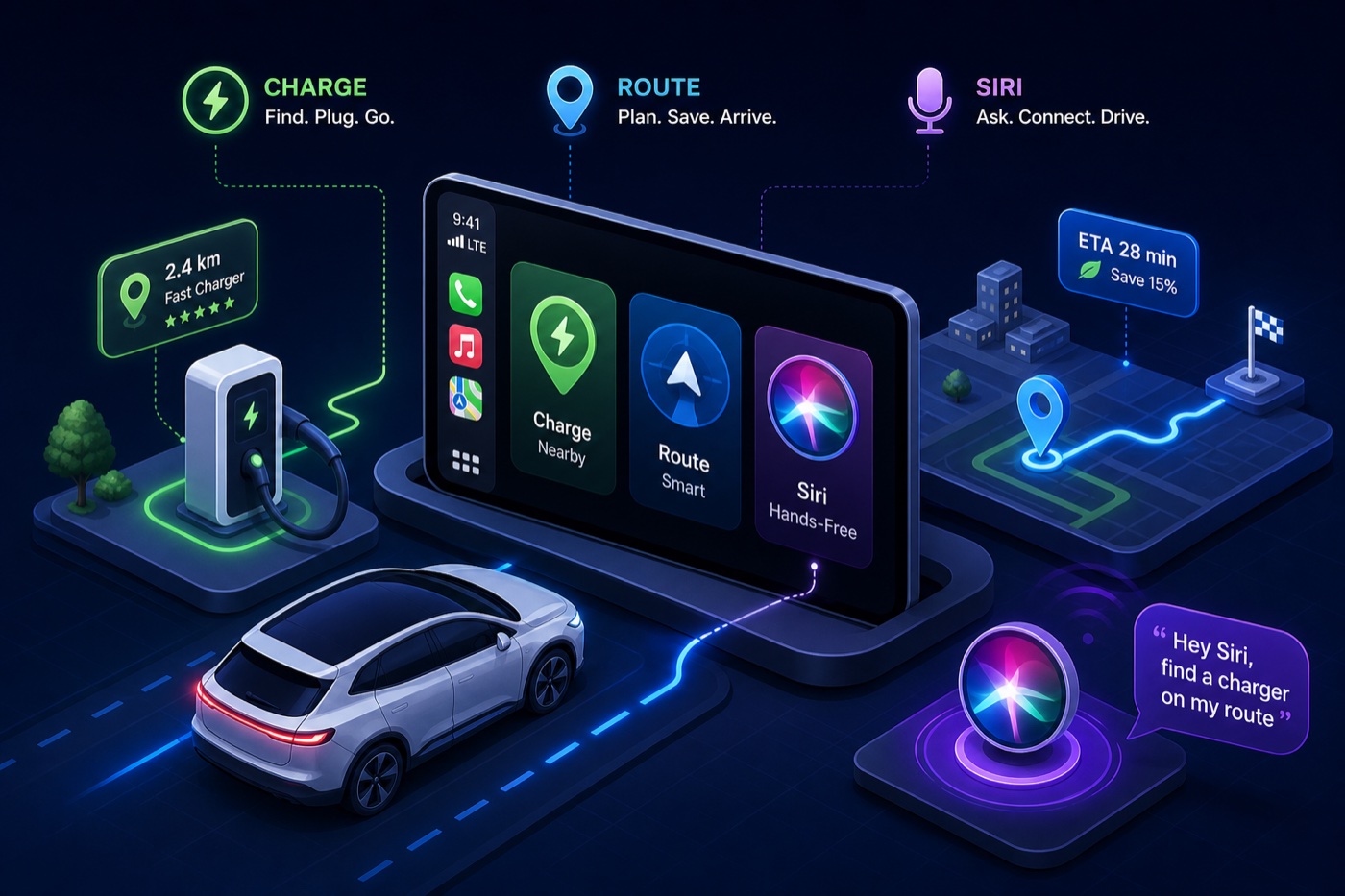
You’re 20 miles from empty. You open your charging app. It loads a full phone interface crammed onto a 10-inch screen, no Siri support, no idea how many taps deep the nearest available charger actually is. Most EV apps were built for a couch, not for 70 mph with one eye on the road and both hands on the wheel. A real CarPlay EV app should surface the nearest working charger in one tap, not send you hunting through menus while merging.
This guide covers the CarPlay-compatible EV apps worth running on your dashboard. What each one does best, where it falls short, and how to stack them into a hands-free workflow before you even pull out of the driveway. One of those apps, WattsNear, is a charger-finding tool designed specifically for in-car use — start there, then fill the gaps with the right tools for routing and network-specific control.
What makes a real CarPlay EV app vs. a phone app on a bigger screen
The difference between CarPlay-native and CarPlay-mirrored apps
CarPlay-native apps are designed around Apple’s in-car interface framework: large touch targets, simplified tab navigation, no scrolling walls of text, and a visual hierarchy that works when your attention is split. CarPlay-mirrored apps just project your phone screen onto the dash display. Functional, technically, but not built for driving. The quickest way to spot the difference: if the dashboard layout matches exactly what you’d see opening the app on your couch, it’s mirrored. Many major charging apps still fall into this category as of 2026.
Before you install anything, check the App Store listing for explicit CarPlay support. An app that mentions “CarPlay” in its description is not the same as one that lists it as a supported feature. When in doubt, search the app name plus “CarPlay” in Apple’s CarPlay available apps directory.
Four features every CarPlay EV app should have when your hands are on the wheel
Use these criteria to evaluate any EV app before it earns a place on your dashboard. What you actually need is a simplified interface with no more than a handful of tabs and no nested menus, Siri shortcut support so you can trigger charger searches without touching anything, real-time charger status visible at a glance without digging through filters, and a one-tap navigate button that launches directions immediately from the charger card.
Any app that misses more than one of these is a phone app wearing a CarPlay badge. Keep that filter in mind as you read through the recommendations below.
WattsNear: built for CarPlay, not ported to it
Four tabs, zero clutter: how the interface works at 70 mph
WattsNear’s CarPlay interface is built around four views — Nearest, Cheapest, Favorites, and Search — which map to exactly how drivers think mid-trip: how close, how cheap, have I been here before, or let me search a specific area. Those are the only things you actually need on the road. Each tab is designed to load quickly, with charger cards that surface distance, price per kWh, connector type, and a one-tap navigate button. The app requires no account to browse and keeps network promotion banners off the primary display.
Compare that to apps that bury station status behind a scroll or push you through a login wall before showing a single charger. The entire point of a dashboard app is to reduce decisions, not add them. WattsNear’s approach is to make the most common mid-drive questions answerable in a single tap.
Asking Siri to find a charger without touching anything
WattsNear supports Siri Shortcuts, which means you can configure a voice command — something like “Hey Siri, find a cheap charger nearby” — that opens the relevant tab and surfaces results without touching the phone or the CarPlay screen. This is hands-free in the genuine sense, not just “Hey Siri, open the app” voice control that still leaves you tapping through menus. Setup runs through the iOS Shortcuts app and takes only a few minutes once you locate the app’s actions in the library.
The home-screen widget rounds out the pre-drive workflow
The WattsNear home-screen widget is most useful before CarPlay connects. Place it on the lock screen or the first row of your main home screen so it’s visible the moment you pull out your phone in a parking lot. It shows the nearest charger name, distance, and price with a direct tap to launch navigation — useful in covered garages or areas with spotty Bluetooth where CarPlay takes a few extra seconds to load and you want to confirm your next stop before driving up to street level.
EV navigation apps for CarPlay: routing and charging stop planning
A Better Route Planner: the long-trip specialist
For multi-stop road trips, A Better Route Planner (ABRP) is the strongest dedicated routing option available as a CarPlay EV app. It accounts for starting battery percentage, vehicle efficiency, traffic, weather, and elevation to calculate exactly where to stop and for how long. Owners running Porsche Taycan and Ford Mustang Mach-E builds have reported ABRP arrival estimates within a few percent of actual battery levels at charging stops, outperforming built-in navigation on range predictions, though individual results vary by driving style and conditions.
The trade-off is worth knowing upfront. ABRP requires manual state-of-charge entry because CarPlay apps currently can’t read vehicle battery data without manufacturer-level integration. Full CarPlay functionality also requires the premium subscription at roughly five dollars per month. That’s a reasonable ask for a dedicated long-distance planning tool, but it means ABRP is not a daily-driver app for routine stops. Use it for pre-planned interstate trips and unfamiliar corridors where margin of error matters.
Apple Maps and Google Maps EV routing: native but narrow
Both Apple Maps (iOS 15 and later) and Google Maps support EV routing with automatic charging stop suggestions directly in CarPlay. Apple Maps integrates real-time battery data for a small list of vehicles — the Ford Mustang Mach-E, F-150 Lightning, and Porsche Taycan are among the confirmed models with native battery state integration as of 2026. If your car is on that list, the experience is seamless. If it isn’t, Apple Maps falls back to manual entry just like every other app.
Google Maps works more broadly across EV models but still requires manual setup for full routing features, and real-time availability data is more limited in the CarPlay version than in the phone app. Both are strong complements for turn-by-turn navigation, but neither replaces a dedicated charger-finding tool. They’re navigation apps that added EV features, not CarPlay charging station apps built from the ground up for in-car use.
CarPlay charging station apps: what the network tools actually show in the car
ChargePoint and PlugShare: what works in the car vs. what stays on your phone
ChargePoint has genuine CarPlay support: a map of nearby stations, real-time availability, session start and stop, and navigation without leaving the app. For drivers who charge primarily on the ChargePoint network, this is a clean in-car experience. The CarPlay interface lets you filter by connector type, see live occupancy, and initiate a session with a single tap after plugging in. It’s one of the few network apps that earns a slot on the dashboard.
PlugShare’s CarPlay support is more limited. Charger discovery is solid and the crowdsourced check-in data is often more accurate than official network feeds for flagging broken or blocked stations. Routing and session control, though, require the phone app. PlugShare is worth having for the reliability intelligence it provides on non-ChargePoint stations, but treat it as a supplemental research tool rather than a primary dashboard app.
Why most network apps break down in the car
Electrify America, Blink, and EVgo don’t have confirmed native CarPlay interfaces as of mid-2026 — they either aren’t listed as CarPlay-compatible or project a phone UI too dense for safe driving use. The deeper problem is structural: network apps are built to serve their own stations, not to help you find the best available option across all networks. When you’re 15 miles from empty and need the nearest working Level 3 charger regardless of brand, a single-network app is the wrong tool.
WattsNear is designed to address exactly this gap — a network-agnostic EV app for CarPlay that pulls from the full NREL database maintained by the U.S. Department of Energy, putting every public station in the U.S. on the same map without app-switching based on which network you happen to be closest to.
Setting up Siri shortcuts for hands-free charger access
Creating voice commands for your most-used charger searches
Open the Shortcuts app on your iPhone (pre-installed on iOS 16 and later), tap the plus button to create a new shortcut, and search for WattsNear in the action library. From there, assign actions for nearest charger, cheapest charger, or a saved favorite location. Give it a phrase you’d actually say naturally while driving — “Find a charger nearby” or “Cheapest charger” works better than something you’d have to remember word-for-word under pressure.
ABRP also supports Siri for destination input, so if you’re running both apps, you can trigger the route plan before leaving and activate charger search mid-drive without picking up the phone. Set both up once, test them in your driveway, and you’re done. The Shortcuts gallery in iOS 16 and later surfaces app-recommended actions automatically, which speeds up the initial setup.
How to build your CarPlay EV app stack without overcomplicating it
A lean two-app setup that covers most charging situations
The functional stack most drivers need is two apps: WattsNear for charger discovery, status checking, and price comparison during daily driving and unexpected stops, plus ABRP for planned long-distance routing where battery precision matters. These two cover the full range without redundancy. WattsNear handles the unplanned and the routine. ABRP handles the pre-planned and the long-haul.
For drivers who mostly charge at known locations, WattsNear’s Favorites tab — which syncs across Apple devices via iCloud — handles the repeat-visit case on its own. The goal is fewer decisions at speed, not a fuller dock.
Which CarPlay EV app to open first based on your drive type
Daily commute or unplanned stop: trigger your WattsNear Siri shortcut or open the Nearest tab directly. Planned interstate trip: run the ABRP route before you leave, then use WattsNear as your backup and real-time reference on the road. Unfamiliar city: WattsNear Nearest tab, filter by your connector type, navigate to the closest available station. No app-switching anxiety, no digging through menus while merging.
- Daily / unplanned: WattsNear Nearest or Cheapest tab, or Siri shortcut
- Long interstate trip: ABRP for pre-departure planning, WattsNear on-road backup
- Unfamiliar city: WattsNear Nearest tab with connector type filter active
Stop building a complicated stack and start driving with a simple one
Most EV apps were built for browsing, not driving. The CarPlay EV app stack worth installing is small: one natively built charger finder designed for the dashboard (WattsNear), one routing app for long-distance planning (ABRP), and a backup network app like ChargePoint if you rely on that network regularly. Three apps maximum, two for most drivers.
Set up the Siri shortcut and the WattsNear home-screen widget before your next drive, and you won’t need to reach for your phone to make charging decisions. That’s the actual goal: not more apps, but fewer decisions at 65 mph. The tech should disappear into the drive, not compete with it.
Download WattsNear on iPhone, add it to CarPlay, and configure your Siri shortcut before you next hit the road. A few minutes of setup, and your charging workflow handles itself from there.